
How to Setup IPTV on Samsung Smart TV & LG webOS (Tizen Guide)
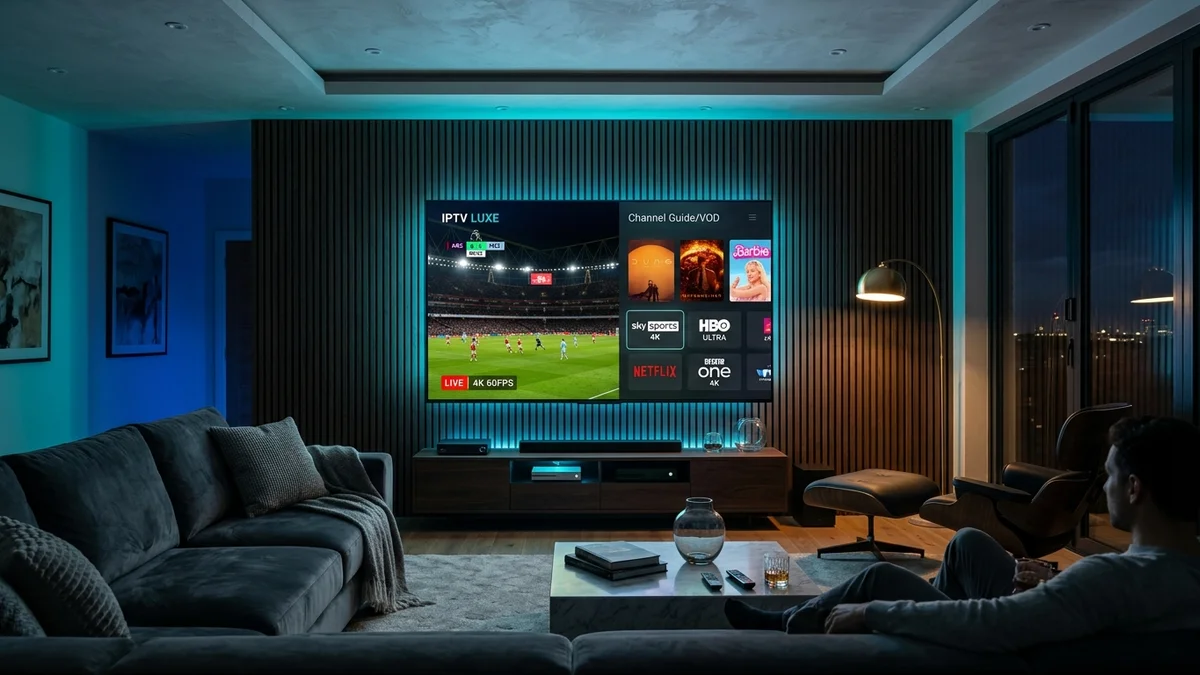
Configuring iptv on samsung smart tv or LG webOS televisions is one of the cleanest ways to enjoy cord-cutting. Because the streaming player runs as a native smart application, you eliminate unsightly cables, bulky external set-top boxes, and secondary remote controls.
Whether your television operates on Samsung’s Tizen OS or LG’s webOS, this tutorial walks you through installing certified player apps, uploading your M3U playlist credentials, and resolving common issues such as black screens or playlist loading failures.
Step 1: Install IBO Player from the Official TV App Store
While several IPTV players exist for Smart TVs, IBO Player is currently the most responsive and stable application available directly in both the Samsung Apps Store and LG Content Store:
- Turn on your television and press the Home button on your remote.
- Navigate to the Apps icon (Samsung Apps or LG Content Store).
- Select the Search icon (magnifying glass) and type
IBO Player. - Click Install / Download and wait for the application to launch.
Step 2: Note Your MAC Address and Device Key
When you launch IBO Player for the first time, the welcome screen will display two vital pieces of identification:
- Device MAC Address: (e.g.,
00:1a:79:xx:xx:xx) - Device Key: (A 6-digit numeric security pin)
Take a quick photo or note down these two values. You will need them to link your playlist.
Step 3: Connect Your iptvfreetrial.us Playlist
You have two convenient methods to upload your playlist to your Smart TV:
Method A (Easiest — via WhatsApp Support): Simply send a photo of your television screen showing your Device MAC and Device Key to our WhatsApp support agent at +1 (587) 324-1590. Our engineers will link your 24-hour trial or paid subscription to your TV directly in under 2 minutes.
Method B (Manual Upload): Open your browser on your phone or laptop, visit the official IBO Player portal, enter your Device MAC and Key, click “Add Playlist”, paste your M3U link from iptvfreetrial.us, and save.
Need Free 24-Hour Test Credentials for Your Samsung or LG TV?
Experience 25,000+ live 4K channels right on your living room television. Zero credit card required.
Get Smart TV Trial on WhatsAppTroubleshooting: Fixing Black Screen on Samsung Smart TV
Occasionally, Samsung Tizen users report a black screen where audio plays but no video appears, or the channel spins continuously. Here is how to fix it:
- Cold Reboot Your TV: Hold down the Power button on your Samsung remote for 5 to 7 seconds until the TV turns off and the Samsung Tizen logo reappears. This clears the TV’s volatile system RAM.
- Change Stream Format to HLS: Inside your player settings, switch stream output from MPEG-TS (.ts) to HLS (.m3u8). Tizen processors handle HLS containers with superior hardware acceleration.
- Update TV Firmware: Go to Settings → Support → Software Update and ensure your Samsung or LG TV runs the latest operating system firmware.
Conclusion
Setting up IPTV on modern Samsung and LG televisions is fast, clean, and provides instant access to world-class sports and cinema.
Ready to enjoy endless 4K entertainment? Check our IPTV pricing tiers ($24.99 for 3 months, $39.99 for 6 months, or $59.99 for 12 months) and start streaming tonight!