
How to Install IPTV on Amazon Firestick 4K: Complete Beginner Tutorial
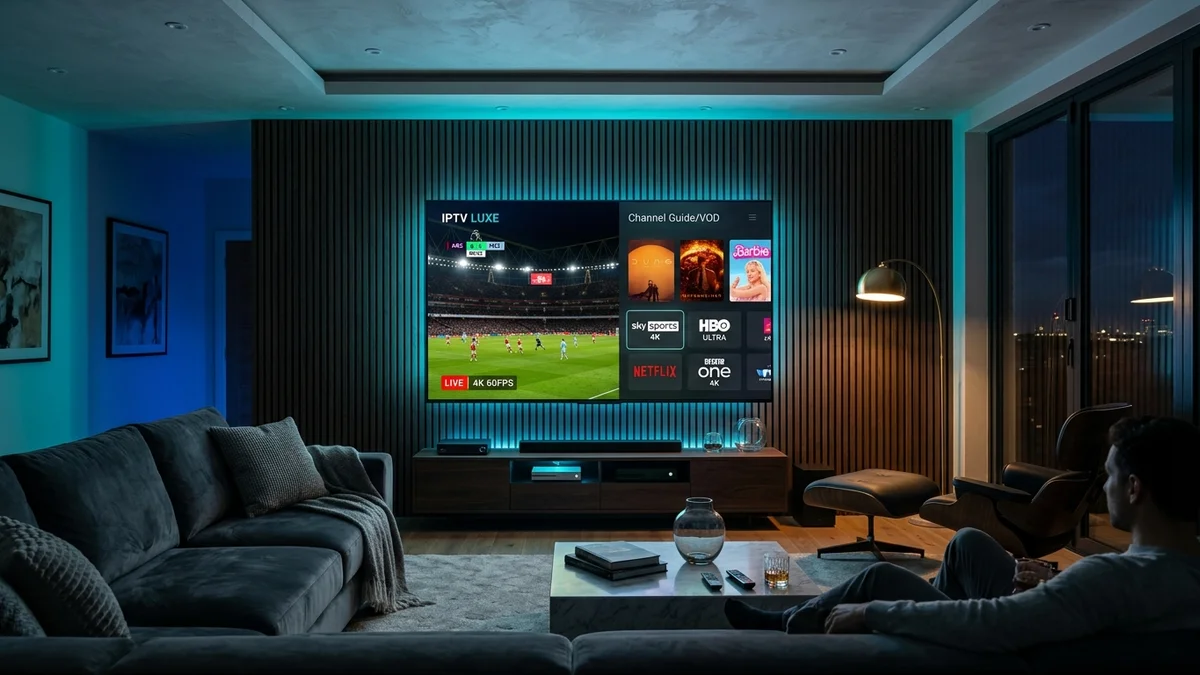
The Amazon Fire TV Stick is undoubtedly the most popular streaming accessory in North America. Thanks to its quad-core processor, portable HDMI design, and support for 4K Dolby Vision, learning how to install iptv on amazon firestick unlocks thousands of live television channels and on-demand movies at a fraction of cable costs.
This complete step-by-step tutorial guides beginners through enabling developer options, downloading the essential Downloader utility, installing IPTV Smarters Pro or TiviMate, and configuring Anti-Freeze settings for flawless playback.
Step 1: Install the Free Downloader App from the Amazon Appstore
Because third-party IPTV players are distributed directly as verified Android APK packages, we utilize the official Downloader app created by AFTVnews:
- From your Firestick home screen, navigate to Find → Search.
- Type
Downloaderand select the orange icon application. - Click Download / Get to install the free utility.
Step 2: Enable Developer Options & Unknown Apps on Firestick
To allow Downloader to install your chosen player APK, you must unlock developer privileges (standard Fire OS security policy):
- Navigate to Settings (Gear icon) → My Fire TV → About.
- Click on the name of your device (e.g. Fire TV Stick 4K) rapidly 7 times until a notification states: “No need, you are already a developer.”
- Press the back button to return to My Fire TV, and you will now see Developer Options.
- Click Install unknown apps, find Downloader, and toggle it to ON.
Step 3: Download and Install IPTV Smarters Pro or TiviMate
Open the Downloader app and allow file storage permissions when prompted. In the URL address box, enter the direct short code or URL for your preferred player:
- IPTV Smarters Pro: Enter the official downloader numeric code or APK download link provided by our WhatsApp support team.
- TiviMate Companion: Enter the direct TiviMate APK package link.
Click Go, wait for the download to finish, click Install, and then select Done. Make sure to click “Delete” on the downloaded APK file to conserve valuable internal storage on your Firestick!
Need Free 24-Hour Test Credentials for Your Firestick?
Test all 25,000+ live 4K channels and 60,000+ movies on your Firestick right now with zero obligation.
Claim Free Trial on WhatsApp (+1 587-324-1590)Step 4: Enter Your Login Credentials & Configure Playback
Open IPTV Smarters Pro from your apps menu. Select “Login with Xtream Codes API”, enter any nickname for the profile, and input the Server URL, Username, and Password sent to your WhatsApp by iptvfreetrial.us.
Once logged in, navigate to Settings → Player Selection and ensure hardware decoding (HW) is active. This utilizes the Firestick’s dedicated GPU to process 60 FPS sports without overheating or stuttering.
Fix: What to Do If Firestick Keeps Crashing or Buffering
If your player app periodically crashes back to the home screen or keeps buffering:
- Clear App Cache: Go to Settings → Applications → Manage Installed Applications → Smarters Pro → Clear Cache.
- Check Free Storage: Ensure your Firestick has at least 1.5 GB of free space. Delete unused games or utility apps.
- Power with Wall Adapter: Always plug your Firestick into an AC wall socket using the included power brick, rather than relying on low-amperage USB ports on the back of your television.
Summary
The Amazon Firestick combined with iptvfreetrial.us delivers an unbeatable living room experience. For more detailed instructions on other operating systems, visit our universal setup walkthrough or check out our subscription plans starting at just $24.99.